Hide secret data inside an image or audio file
Hey there!
Suppose you have downloaded a .jpeg image from the World Wide Web and suspect something is hidden inside it. Or typically in a Capture The Flag (CTF) competition.
How do you get it out?
In this article, you will discover how to conceal secret messages or data by embedding data into a file. Then, we will find how to extract the hidden data from that file.
For this purpose, I‘ll use Kali Linux, my favorite OS, and a technique called Stenography.
What Is Steganography?
Steganography hides data within files like pictures, making them appear, as usual, innocent images to anyone who isn’t aware of the hidden data.
Several techniques exist for concealing data in files, but I’ll use LSB in this article. This is the least significant bit technique, one of the most widely used and perhaps most straightforward to understand.
This technique changes the last few bits in a byte to encode a message.
This is useful in images, where each pixel is represented by eight bits (one byte) ranging from 0 to 255 in decimal or 00000000 to 11111111 in binary.
Changing the last two bits in a pixel would be impossible for the naked eye to notice.
Let’s dive into it.
Step1. Embed hidden data into a file
To do that, you must install “steghide” in Kali Linux, which needs to be updated.
You must change to root user and run the following command:
$ apt install steghide
Once installed, you need to embed data in a file, and for that we are using the following command:
$ steghide embed -ef secretFile -cf coverFile -sf outputFile
The arguments required for this case are the following:
- -ef specify the file that will be embedded (the file that contains the secret message).
- -cf specify the cover file that will be used to embed data.
- -sf, specify the name of the stego file that will be created. This is used to save the output to a new file.
- -z specifies the compression level between 1 and 9.
- –Z can be used when you don’t want to compress the file
- -e specify encryption parameters. Or the type of encryption
- -p use the string following this argument as the passphrase.
- -fx creates a file named filename and writes the data embedded in the stego file to it.
For this article, I will hide the secret text (steg.txt) inside a .png image of a penguin and create a separate output file, not compressing or encrypting the file.
Let’s dive into it.
In my case, I will run the following command:
$ steghide embed -ef '/home/kali/steg.txt' -cf '/home/kali/Linux.png' -p password123
The command “steghide embed” with the argument “-ef “ specifies the file’s path we want to hide. I have a .txt file in the /home/kali/ folder. Then I added another argument, “-cf,” which specifies the embedded file. In my case, the image “Linux.png” is followed by the argument “-p” and a strong password.
Well, mine is far from a strong password.

Oops, the image I used needed to be longer. Let’s try using another image, “brain.jpg”. Drag and drop the image after the “-cf” argument.
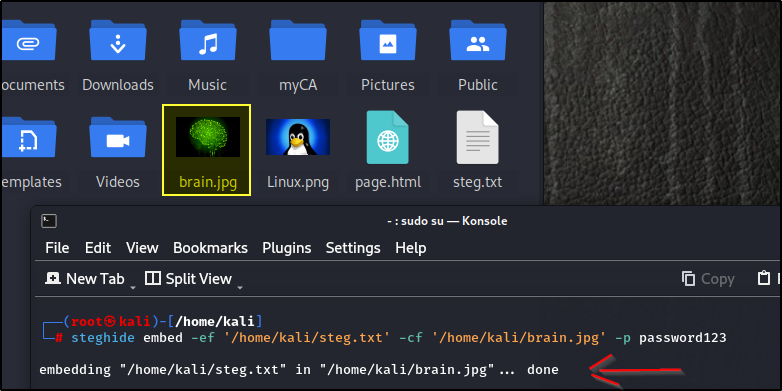
Awesome. Now that that’s done, we can see that the image was updated. There is no visible difference; only you know it has some information embedded.

It is important to note that changing the file image’s size and format or compressing it might temper the information added and cause the information inside to be lost.
We must jump on the second step and extract the hidden information to prove it worked.
Step 2. Extract hidden data from the file
To do so, I’ll be using the following command:
$ steghide extract -sf stegoFile -xf outputFile
The hidden information is extracted using “steghide extract” with the “-sf” argument and the stenographic image. The argument follows the “-p” argument for the password used and “-xf” to output the information to a different file. In my case, I will name it “brain.txt.”
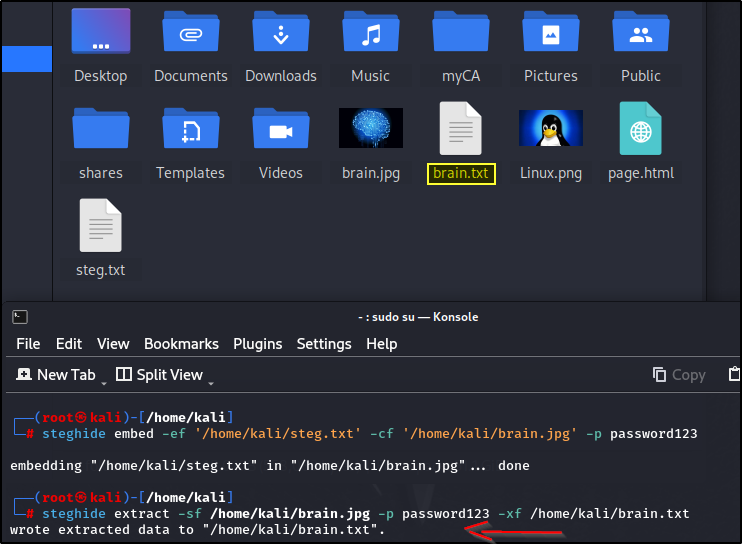
Now you can see the confirmation message that the information was extracted and the new file “brain.txt” as requested.
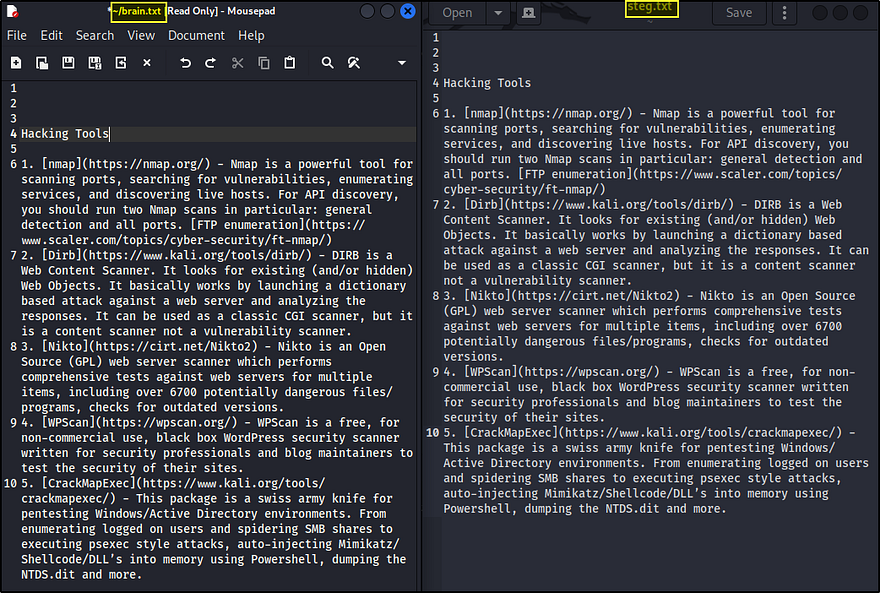
You can check both documents and compare the data for a last comparison. In my case, the information is the same on both documents, and the operation was successful.
The advantage of steganography is that it can conceal data in plain sight. Unless you have the original, the minor variations introduced in steganography are hard to detect.
The process that you have seen here can also be automated.
I hope you enjoyed reading and learned more about steganography.
Thank you for reading. If you want to read similar articles, stay tuned.