Bonjour service on Windows11
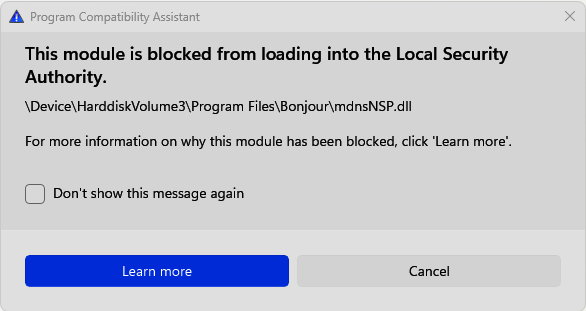
This module is blocked from loading into the Local Security Authority
If you are on Windows 11, you might have seen this pop-up window, wondering what you did wrong or what just happened.
The file itself is located in the C:\Program Files\Bonjour folder.
Bonjour is a networking protocol developed by Apple Inc. that enables devices to automatically discover and connect with one another on a local network. It utilizes a combination of industry-standard protocols, including IP (Internet Protocol) and DNS (Domain Name System), to facilitate communication between devices without requiring manual configuration.
Once connected to the same network, devices like computers and printers can seamlessly exchange data and share resources.
ndnsNSP.dll is a Windows Network Service Provider component that integrates Bonjour into the Windows networking stack. It enables “zero-configuration” networking, allowing applications to automatically discover devices and resolve .local hostnames without manual setup.
Many programs, such as Adobe Creative Suite or printer software, install Bonjour as a background service to facilitate automatic device communication.
Should you disable it? Disabling the service is generally safe if you do not use local network discovery, network printing, or media streaming. However, doing so may cause dependent programs to lose connectivity or fail to find devices.
If you are unsure, disable it temporarily and re-enable it if network functionality is lost.
To disable the Bonjour service and its associated component (ndnsNSP.dll) on Windows, you can use the built-in Services manager. This is the safest method because it allows you to easily turn it back on if you notice any issues with printing or network discovery.
Method 1: Using Windows Services (Recommended)
- Press
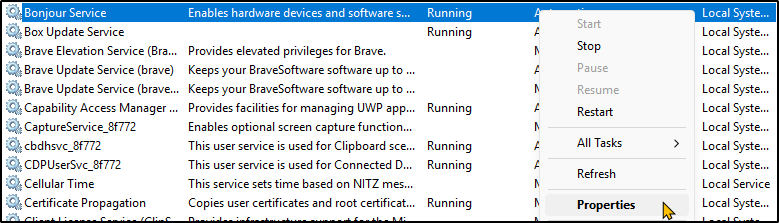
Win + Ron your keyboard, typeservices.msc, and press Enter. - Scroll down the list to find Bonjour Service.
- Right-click it and select Properties.
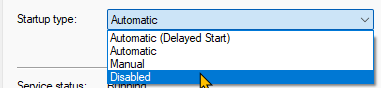
4. Change the Startup type to Disabled.
5. Click the Stop button to end the current session of the service.
6. Click Apply and then OK.
Method 2: Using Command Prompt (Faster)
If you prefer a quick command, you can do this via an Administrator Command Prompt:
- Search for cmd in your Start menu, right-click it, and choose Run as Administrator.
2. Type the following command and press Enter to stop the service: sc stop "Bonjour Service"
3. Type the following command and press Enter to disable it: sc config "Bonjour Service" start= disabled

The command returned with SUCCESS, and the service is now disabled.

Thank you for reading my article. Stay tuned for more articles on cybersecurity, bug bounty hunting, CTFs, and more.